




Most websites run on a content management system. W3Techs detects one on about 68% of the websites it surveys, and WordPress alone on 40.0% (W3Techs, 14 October 2026).
A CMS lets the people who run a site write, edit and publish without touching code. This guide covers what a CMS is and how it works, the 3 main types, their advantages and limits, the platforms most sites use and how to choose one. It ends with how we set up a CMS for the teams we build websites for.
Key takeaways
- A CMS stores your content and places it into templates, so your team edits words and images instead of code.
- Most CMSs fall into 3 types: open-source software you host, hosted website builders and headless systems that send content to any front end.
- WordPress runs 40.0% of all websites, a 58.5% share of the CMS market (W3Techs, 14 October 2026).
- Choose a CMS by who will update the site, what it has to do and what it costs to run, not by how popular it is.
What is a CMS?
A content management system (CMS) is software for creating, organizing, editing and publishing a website’s content without writing code. MDN describes it as software that lets people publish, organize, change or remove content, from text to images, video, audio and interactive code (MDN).
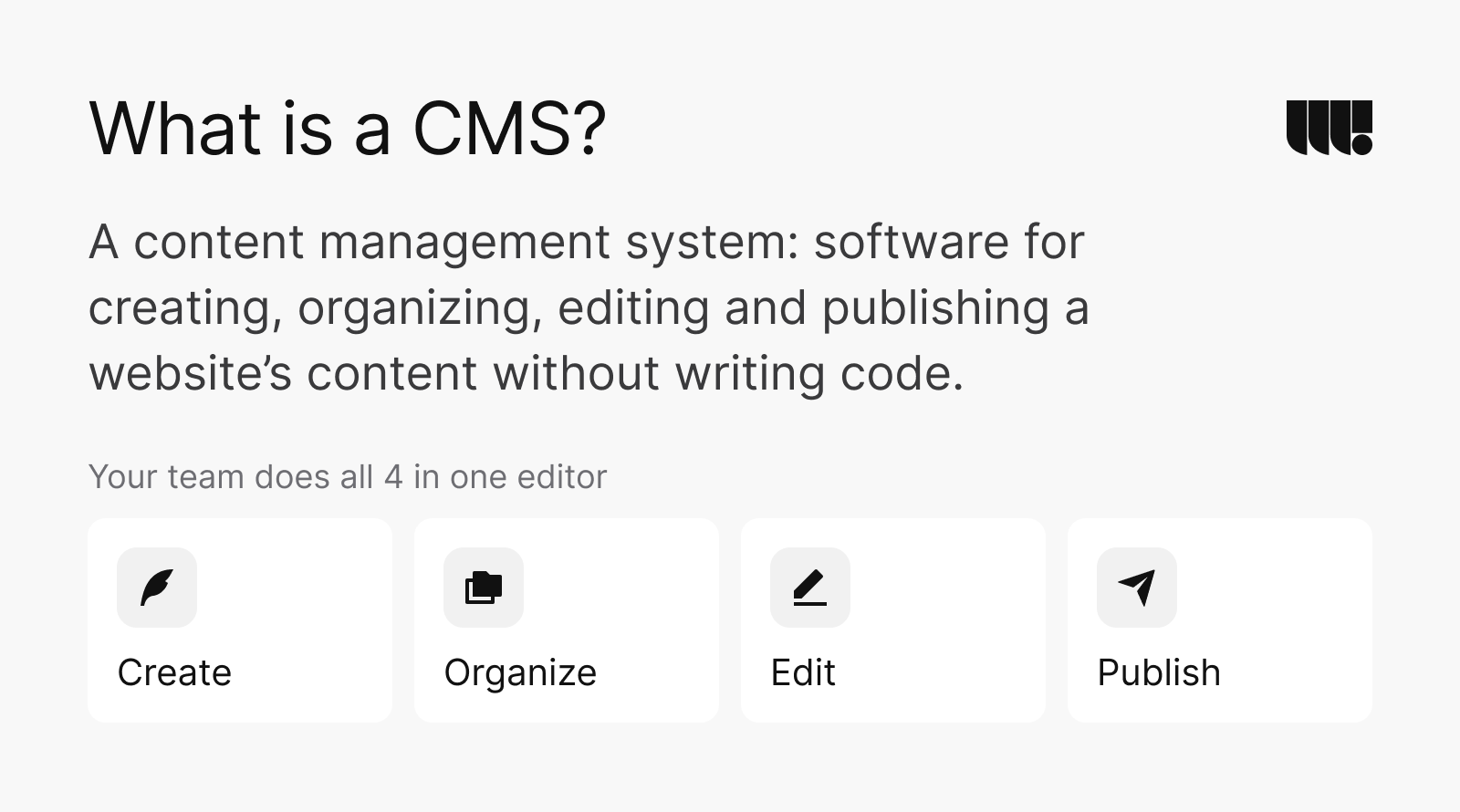
Before CMSs, every change meant editing a page’s HTML and uploading the file again. Most CMSs keep content and design apart. Your team creates, organizes, edits and publishes in one editor, and the system places what they write into templates the designers built.
A CMS website is any site whose pages are managed this way, such as a company site on WordPress or a store on Shopify. Visitors rarely notice the difference. The people who run the site can, because they update it from a dashboard instead of the code.
How a CMS works
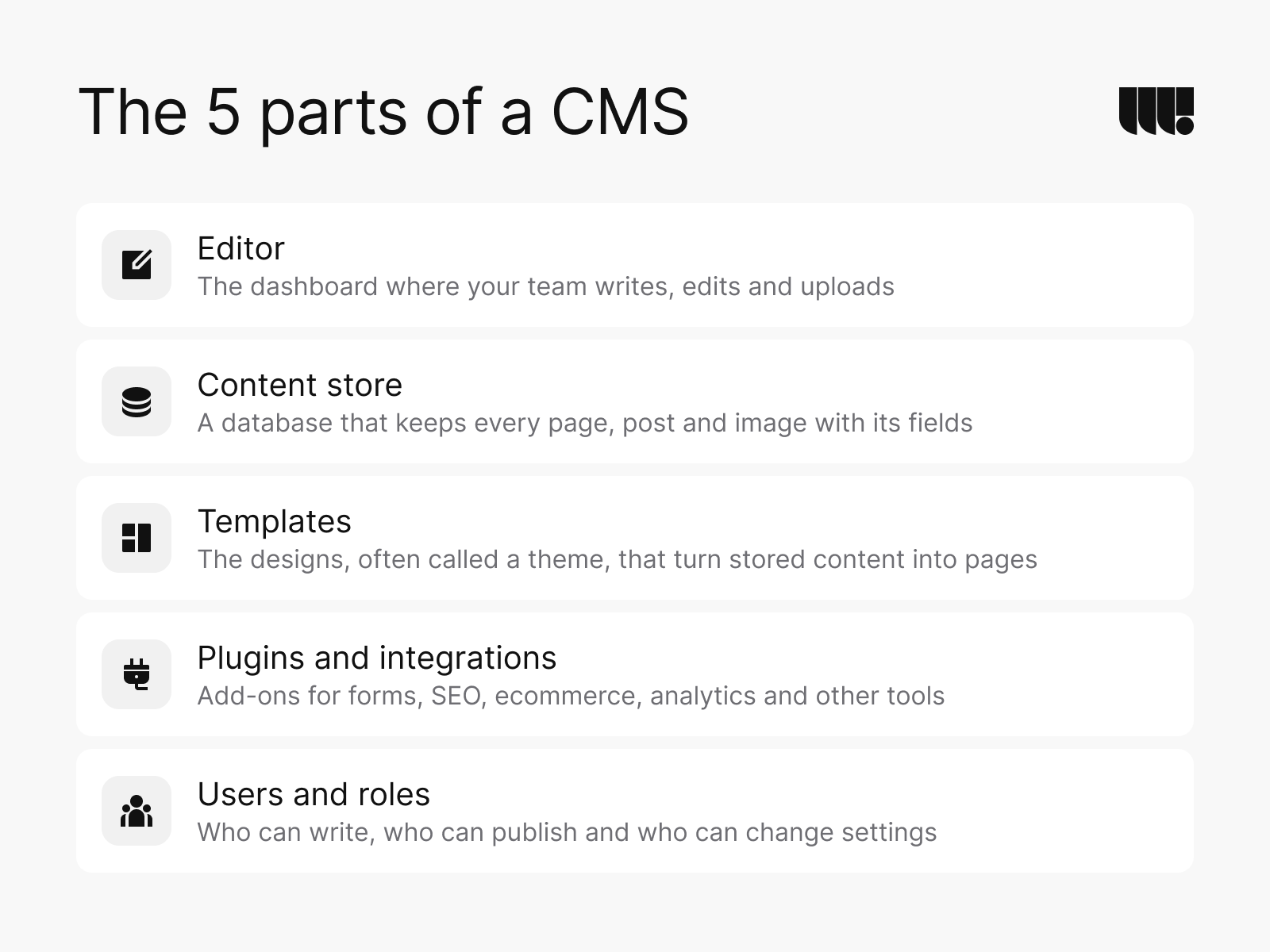
Whatever its name, a CMS has 5 parts:
- Editor: the dashboard where your team writes, edits and uploads.
- Content store: a database that keeps every page, post and image with its fields.
- Templates: the designs, often called a theme, that turn stored content into pages.
- Plugins and integrations: add-ons for forms, SEO, ecommerce, analytics and other tools.
- Users and roles: who can write, who can publish and who can change settings.
When someone opens a page, the CMS takes the content from the database, places it in its template and sends the finished page to the browser. Many sites keep a ready copy of each page in a cache, which lets them serve it faster.
Most CMSs also handle the work around the content. A media library stores images and files and makes resized copies for different screens. Drafts and revisions let someone prepare a change, save it and roll it back if needed. Scheduling publishes a post at a set time, and roles decide who can approve it.
Content in a CMS is structured. A blog post has a title, an author, a date, a category and a body, and a team member has a name, a role and a photo. Defining these content types and their fields is most of the work of setting up a CMS, because every template and every editing screen depends on them.
The role of a CMS in web design
A CMS is where design meets the day-to-day work. Designers build the templates and components once, and the team fills them for years. Whether the layout survives those years depends on how the CMS is set up.
A well-built site gives each type of page its own fields, such as a headline, a summary, an image and a button, instead of one free-form text box. Editors fill in the fields, and the design decides how they look. Components work the same way, with cards, quotes and calls to action that appear in the editor as blocks your team can reuse.
The editing screens deserve design too. Clear field labels, short help text, limits on headline length and a preview of the page all prevent mistakes. A team that finds the editor easy keeps the site current, and that matters more than any feature list.
That’s why the choice of CMS belongs in the design phase, not after it. Our guide to what web design is walks through the whole process.
What a CMS is used for
Almost any site that changes after launch is easier to run with a CMS:
- company websites, with service pages, team pages and news;
- blogs and resource libraries;
- online stores, through an ecommerce plugin or a commerce platform such as Shopify;
- landing pages for campaigns;
- multilingual sites, such as English and French versions of the same pages;
- product catalogues, documentation and knowledge bases;
- intranets and member areas.
A small site that rarely changes, such as a one-page event site, may not need one. Its few edits can go through a developer.
Types of CMS
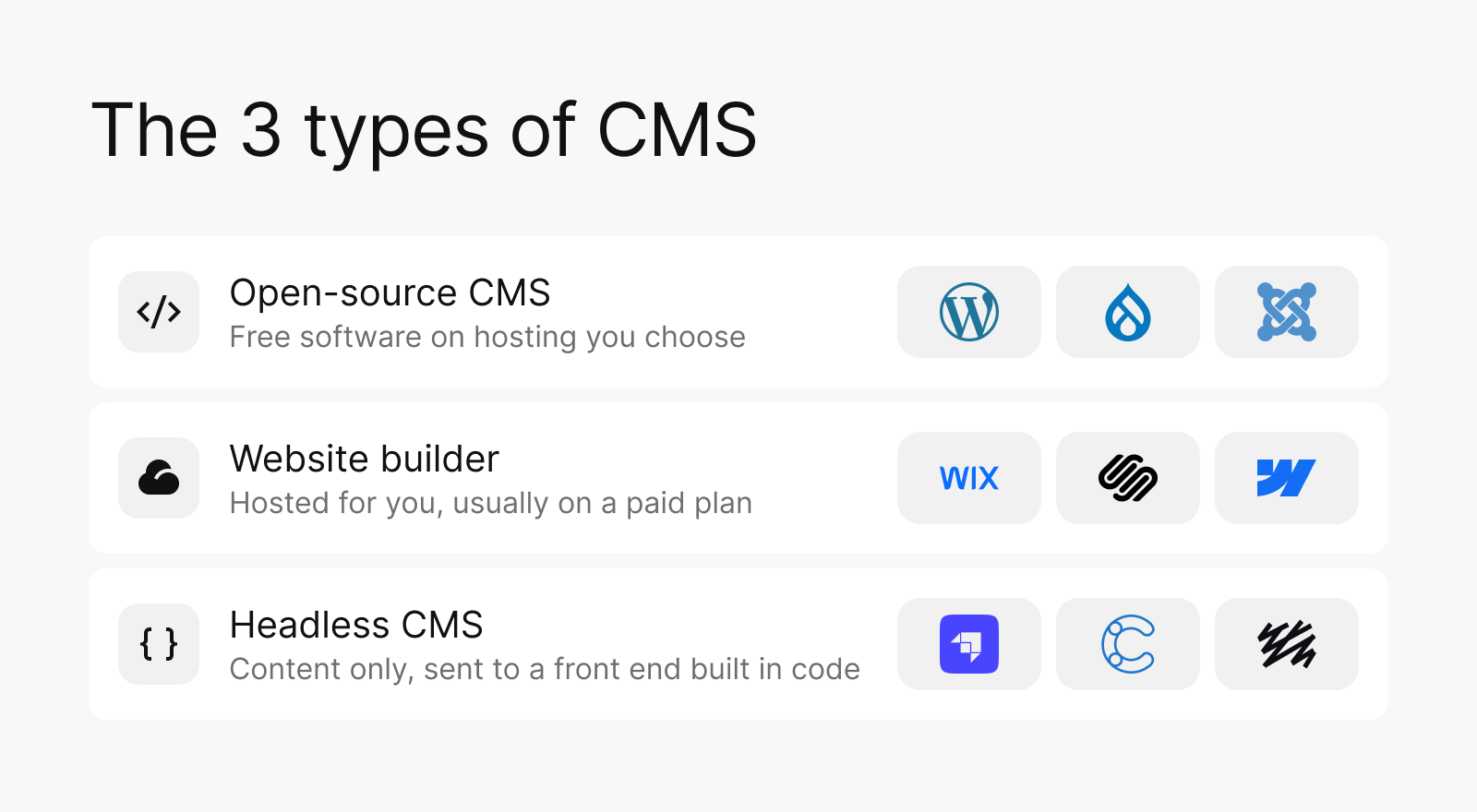
CMSs differ in who hosts them and how they deliver content. Most fall into 3 types.
Open-source CMS
Open-source CMS software is free to use and runs on hosting you choose. The best known are WordPress, Drupal and Joomla, first released in 2003, 2001 and 2005 (WordPress.org; Drupal; Joomla). You control the code, the plugins and the data. The software is free, but hosting, development and upkeep are not, and someone has to keep the core, themes and plugins updated and backed up.
Website builders
Wix, Squarespace and Webflow host the software for you, usually on a paid plan, and Shopify does the same for online stores. Updates and security are handled for you, and most editing is visual. You work within each platform’s features and limits. Webflow, for example, calls each record in its CMS a CMS item, such as a blog post or an office location. On its plans as of October 2026, Starter allows 50 items and Premium 20,000 (Webflow).
Headless CMS
A headless CMS separates content management from the site or app that displays it, while a classic CMS keeps storage, presentation and delivery in one system (HTTP Archive, 2025). Developers pull the content into a site or an app built in code, such as React or Next.js. Strapi, Contentful and Sanity are well-known examples. A headless CMS suits content that appears in several places and teams with developers on hand.
The lines between the types blur. WordPress can also run headless, sending its content through an API to a front end built in code, and some builders offer APIs of their own. Treat the types as starting points rather than boxes.
Advantages of a CMS
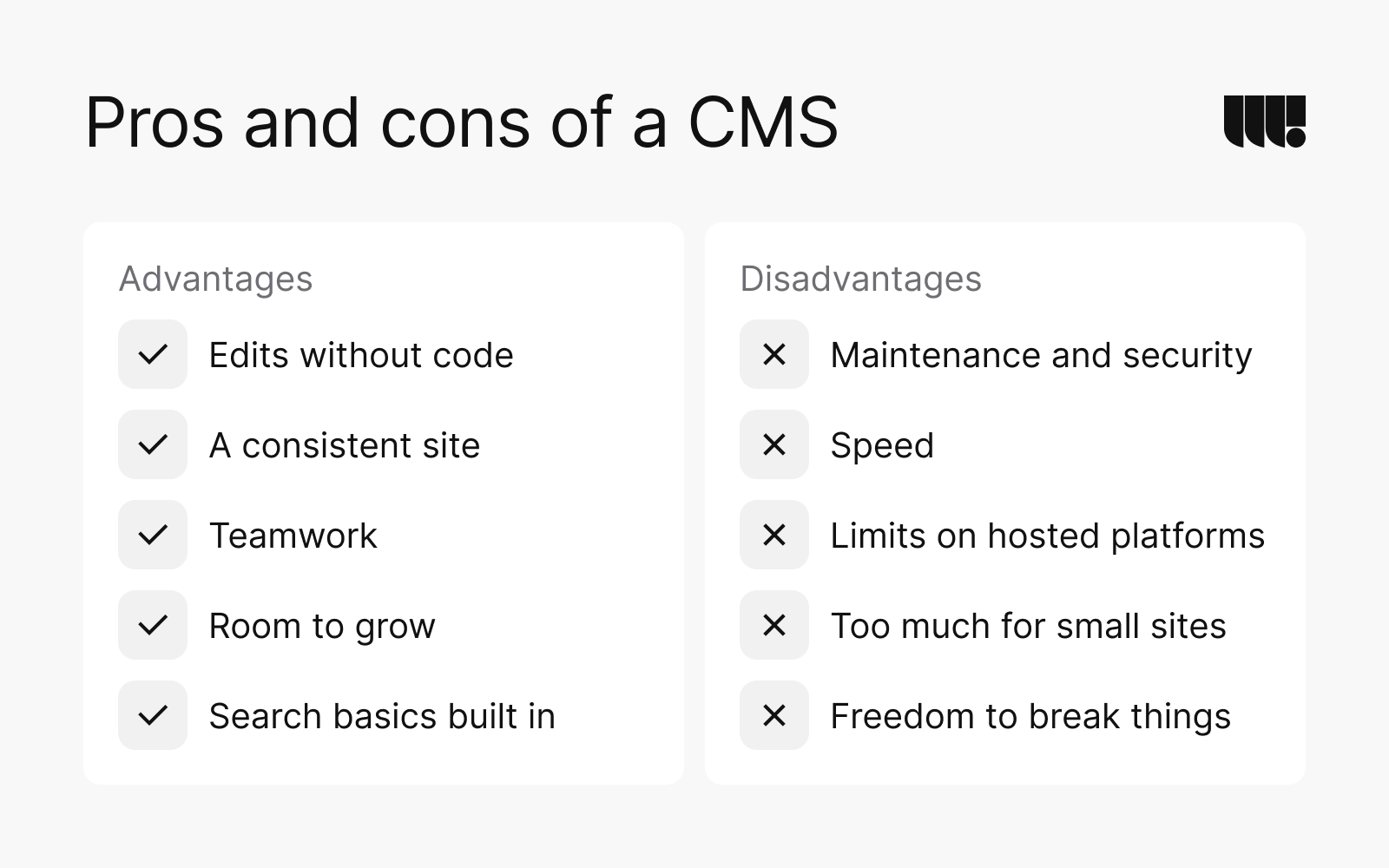
- Edits without code: your team updates text, images and pages itself, the same day.
- A consistent site: templates and components keep every new page on brand.
- Teamwork: roles, drafts, revisions and scheduled posts let several people work safely.
- Room to grow: plugins and integrations add forms, ecommerce, search and more. The WordPress.org directory alone lists over 75,000 free plugins (WordPress.org).
- Search basics built in: titles, descriptions, clean URLs and sitemaps, or a plugin that adds them.
Most of these advantages depend on the setup. A CMS with sensible content types, reusable blocks and clear roles stays quick to work with for years. One installed with default settings and dozens of plugins can become hard to manage.
Disadvantages of a CMS
- Maintenance and security: the core, themes and plugins need regular updates. In Patchstack’s review of WordPress security, 91% of the new vulnerabilities found in 2025 were in plugins. And 46% of all the new vulnerabilities had no fix from the developer when they were made public (Patchstack, 2026).
- Speed: heavy themes and many plugins slow pages down. In the Web Almanac’s 2025 data, 45% of WordPress sites passed Core Web Vitals for real mobile visitors, against 74% of Wix sites. Self-hosted platforms varied far more than hosted ones (HTTP Archive, 2025).
- Limits on hosted platforms: plans cap features, items or traffic, and moving away later means rebuilding.
- Too much for small sites: a full CMS can be more than a site that rarely changes needs.
- Freedom to break things: a loosely set-up CMS lets anyone change layouts, fonts and colours, and the site drifts from its design.
Most of these can be managed. Updates can be scheduled and tested, plugins kept to the ones the site needs and editing limited to the fields each page uses. The trouble starts when nobody owns the site after launch.
Popular CMS platforms
WordPress leads by a wide margin. The chart shows 8 well-known platforms and their share of all websites on 14 October 2026, as measured by W3Techs. W3Techs counts hosted builders such as Shopify and Wix as CMSs too (W3Techs blog).
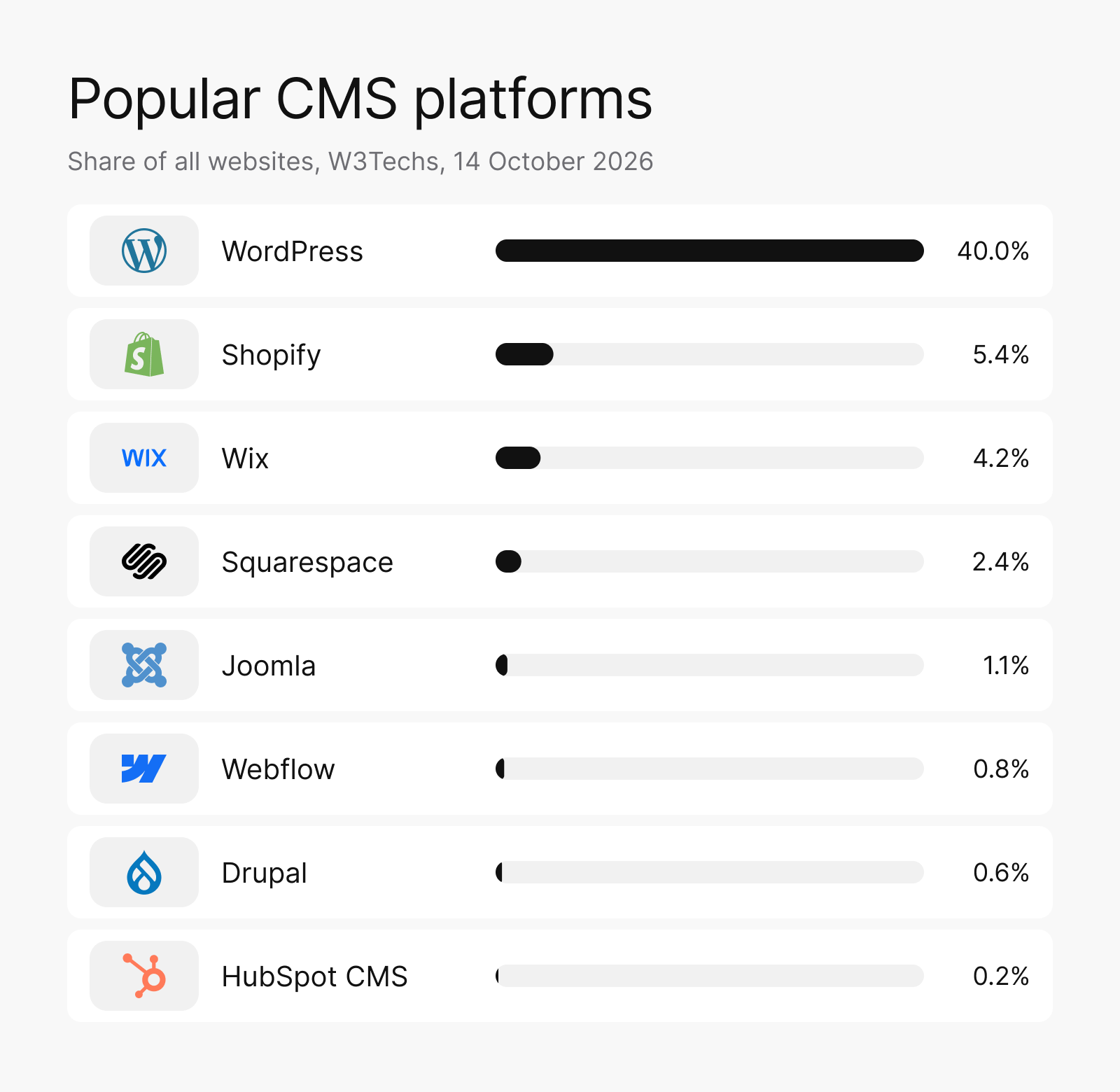
- WordPress: free, open-source software that runs 40.0% of all websites, with themes and plugins for almost any need.
- Shopify: a hosted commerce platform for online stores, on 5.4% of all websites.
- Wix: a hosted website builder with drag-and-drop editing, on 4.2%.
- Squarespace: a hosted builder known for its designed templates, on 2.4%.
- Joomla: open-source software first released in 2005, on 1.1%.
- Webflow: a hosted visual builder with a CMS, for teams that want design control without code, on 0.8%.
- Drupal: open-source software first released in 2001, on 0.6%.
- HubSpot CMS: a hosted CMS that works with HubSpot’s marketing and sales tools, on 0.2%.
So is WordPress a CMS? Yes. WordPress.org calls it a free tool that helps you create, edit and manage a website or blog without needing to learn code (WordPress.org).
How to choose a CMS
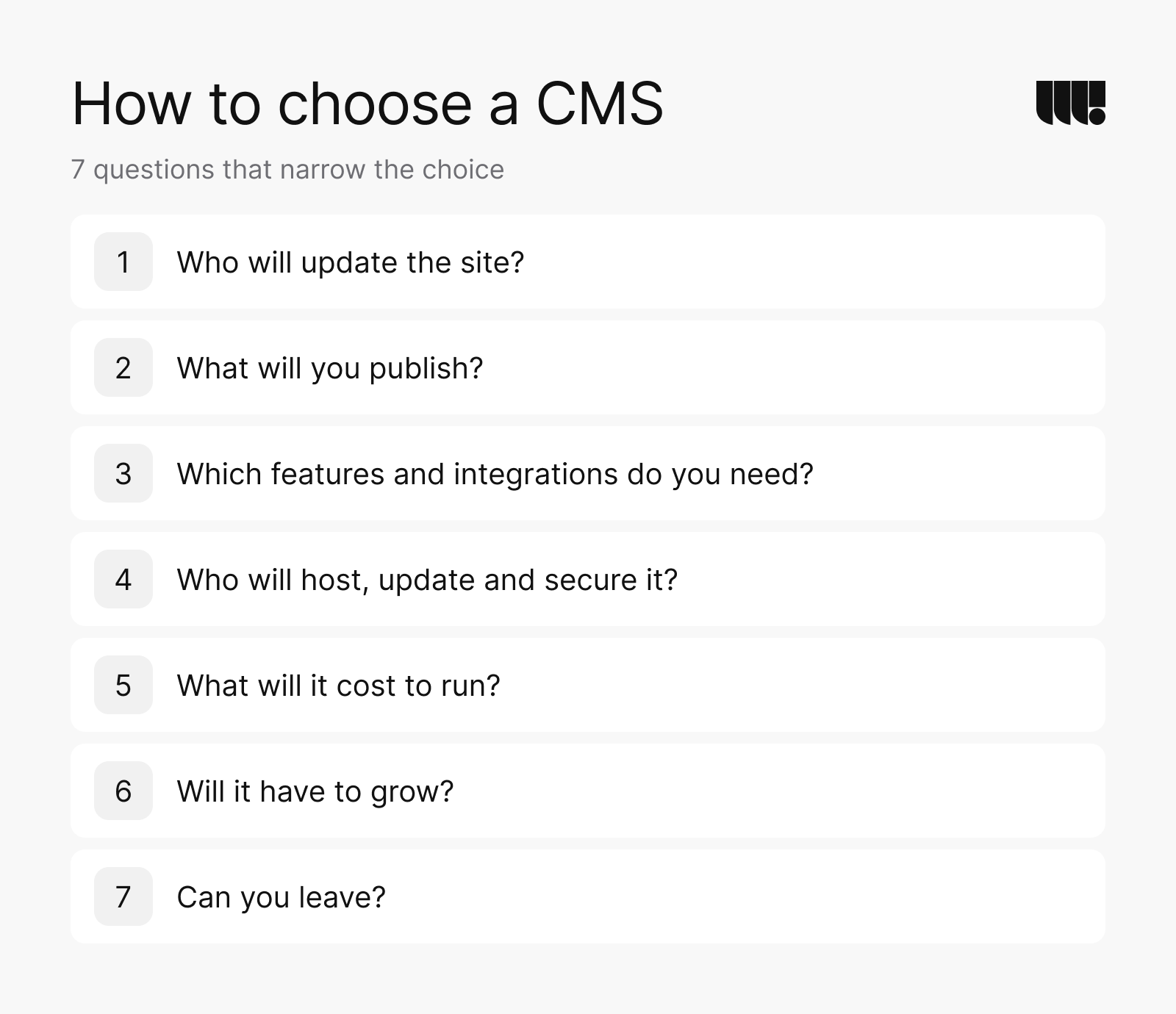
Start from the people and the content, not the most popular name. These 7 questions narrow the choice quickly.
- Who will update the site? A marketing team that edits pages visually needs a different editor than a developer who writes posts. Ask the people who will use it to try the editor before you decide.
- What will you publish? Pages, posts, products, events, several languages or all of these. List your content types with their fields, and check that the CMS can hold them without workarounds.
- Which features and integrations do you need? Forms, a CRM, ecommerce, memberships or search. Check that each one comes with the platform or from a well-maintained plugin.
- Who will host, update and secure it? Your team, a hosting company, the platform or an agency. On open-source software the updates are your job, and on a hosted builder they’re the platform’s. Check that developers who know the platform are easy to find.
- What will it cost to run? Plans or licences, hosting, paid plugins and maintenance, every year. Compare the cost over a few years, not only the first month.
- Will it have to grow? More content, more editors, more languages or an app. Moving later is possible, but it means a rebuild, so plan for where the site will be in 3 years.
- Can you leave? Check how you export content, and who owns it, before you commit. With open-source software the content and the code are yours. On a hosted builder, check what you can take with you.
How we set up a CMS for clients
We build on WordPress, Webflow or custom code (React and Next.js) and recommend one based on who will update the site, the features it needs and your budget. Whichever we choose, your team can edit content without a developer.
Most of that comes from the setup. Our own site runs on WordPress with a custom theme, and each service page has its own fields. An edit there changes the words and images, not the layout.
Sometimes the editor is the design job. For Top Cow Productions, a comic book publisher, we designed an editor dashboard that lets its team add new titles, publish blog posts, edit author profiles and manage website content.
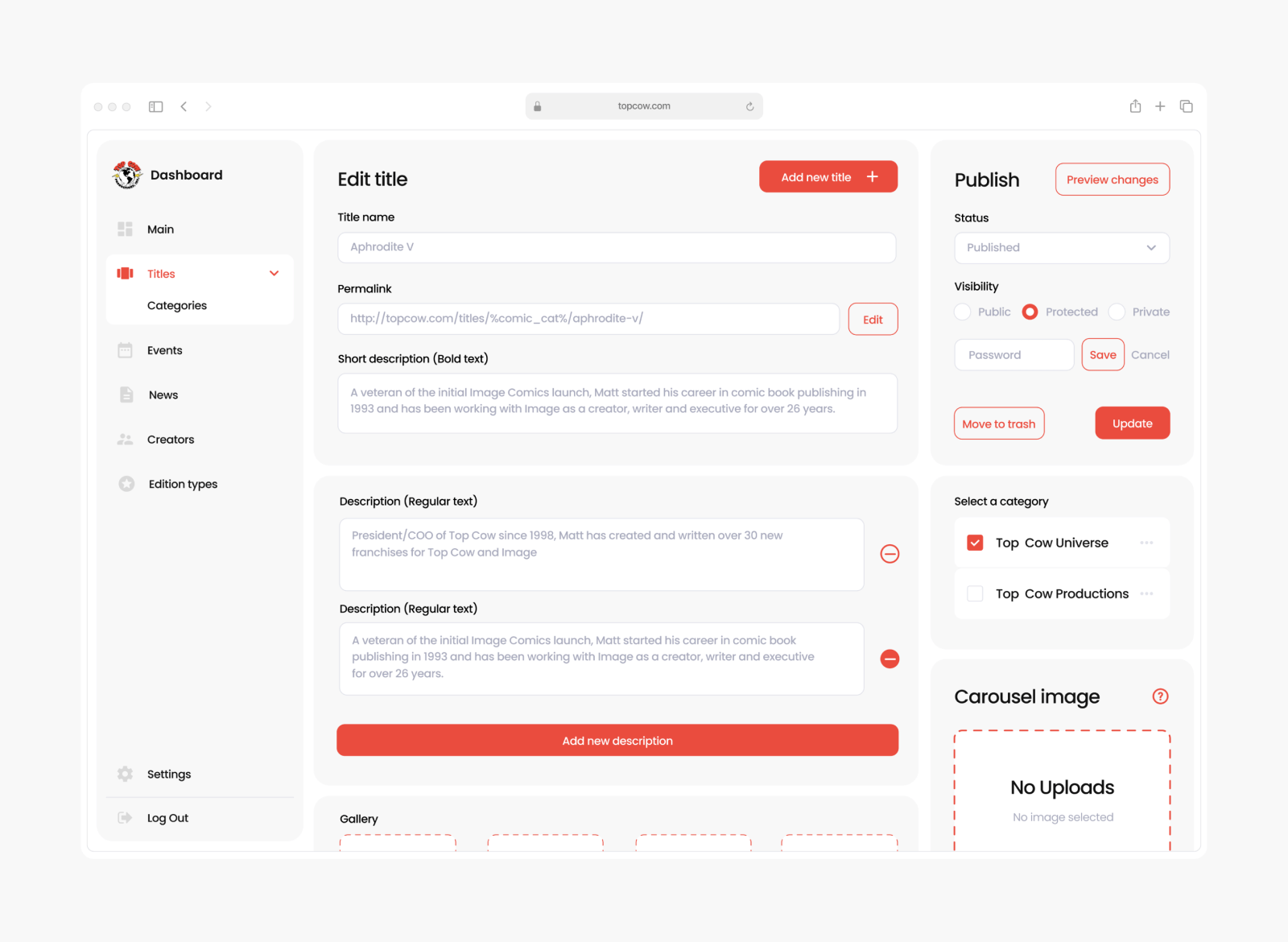
A good setup is easy to spot from the editor. Each type of page has the fields it needs and no more, reusable blocks carry the design and every editor has the role their work needs. A year later the site still looks the way it was designed, whoever updated it.
At launch we train your team on the CMS, hand over all files and accounts and monitor the site in the weeks after. Our maintenance plans then cover CMS and plugin updates, backups and fixes.
Where to start
If you’re choosing a CMS for a new site, list who will edit it, what they’ll publish and the features you need, then compare 2 or 3 platforms against that list. If your current CMS slows your team down, start with what they struggle with each week. For a first budget, our website cost calculator estimates a site from its pages and features, and our web development services cover the build on WordPress, Webflow or custom code.